
Update with the Handlus Updater
If you installed Handlus from a zip file, the Handlus Updater swaps in the new version for you. Download it and open it. It updates Handlus in every Chrome on this computer, and the first run asks whether to get new versions automatically from now on.
Installed from the Chrome Web Store? Chrome updates it on its own, so you can skip this page.
Download the updater
Press the button below. The Handlus popup has the same button on the “With the updater” tab of its update notice.
Download for Mac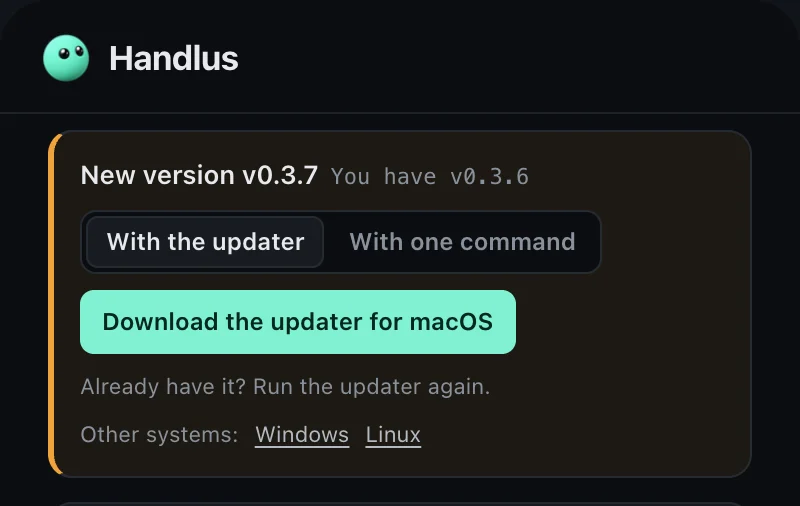
Unzip it and open Handlus Updater
In Downloads, double-click HandlusUpdater-mac.zip, then double-click Handlus Updater.
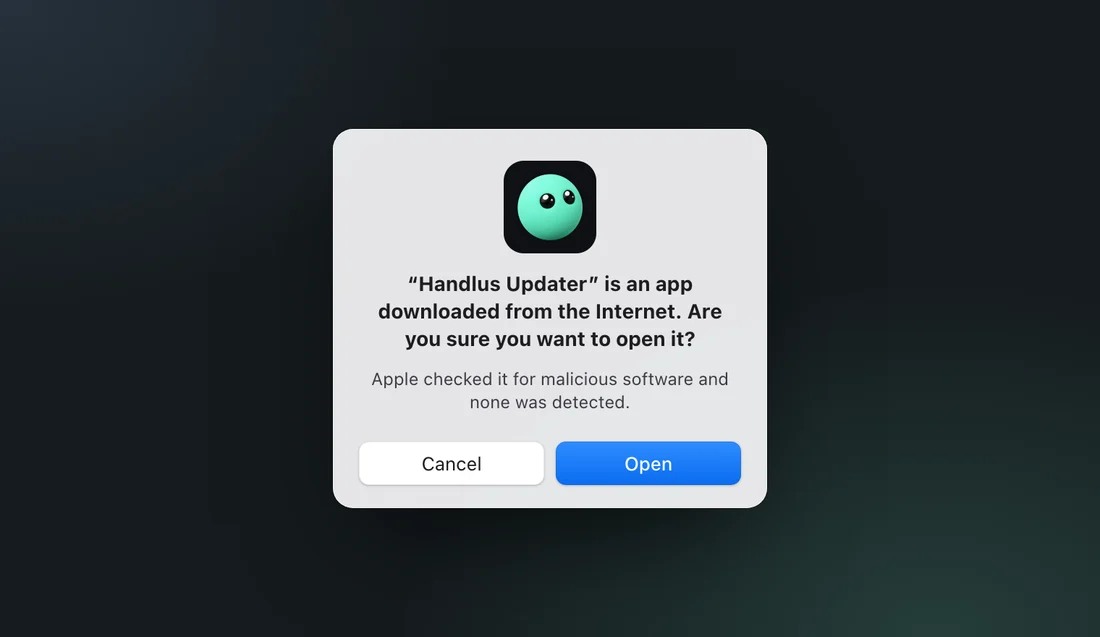
Click “Open”
The first time, your Mac asks whether to open an app downloaded from the Internet. The same window says Apple checked it for malicious software. Click Open. Your Mac does not ask again.
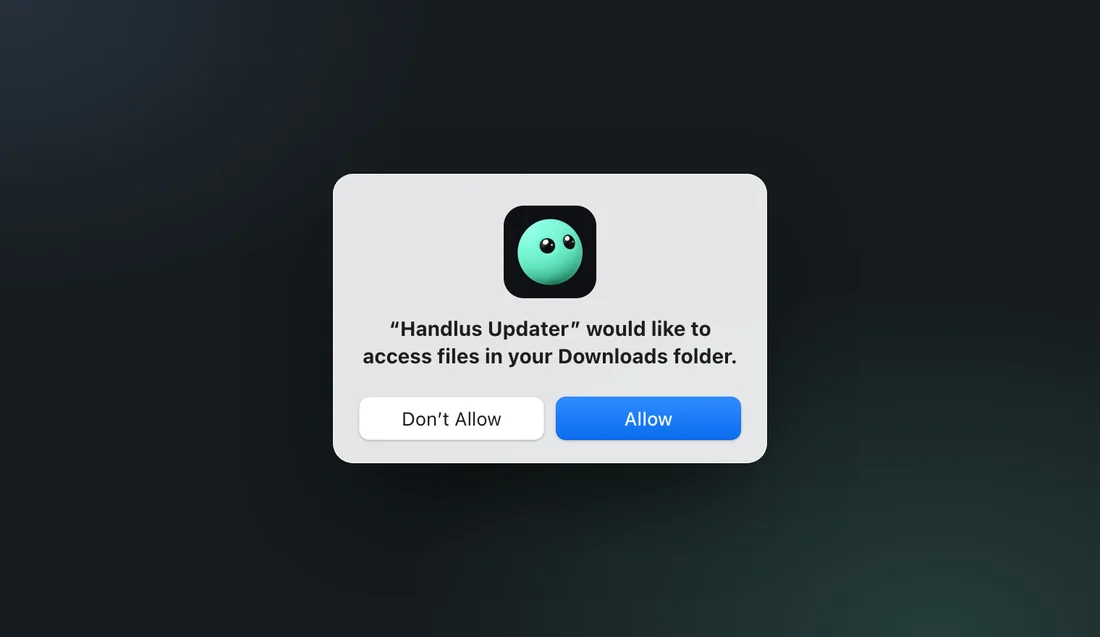
Click “Allow” if your Mac asks
If your Handlus folder is in Downloads, Desktop or Documents, your Mac asks once whether Handlus Updater may use that folder. Click Allow, or the updater cannot change the folder.
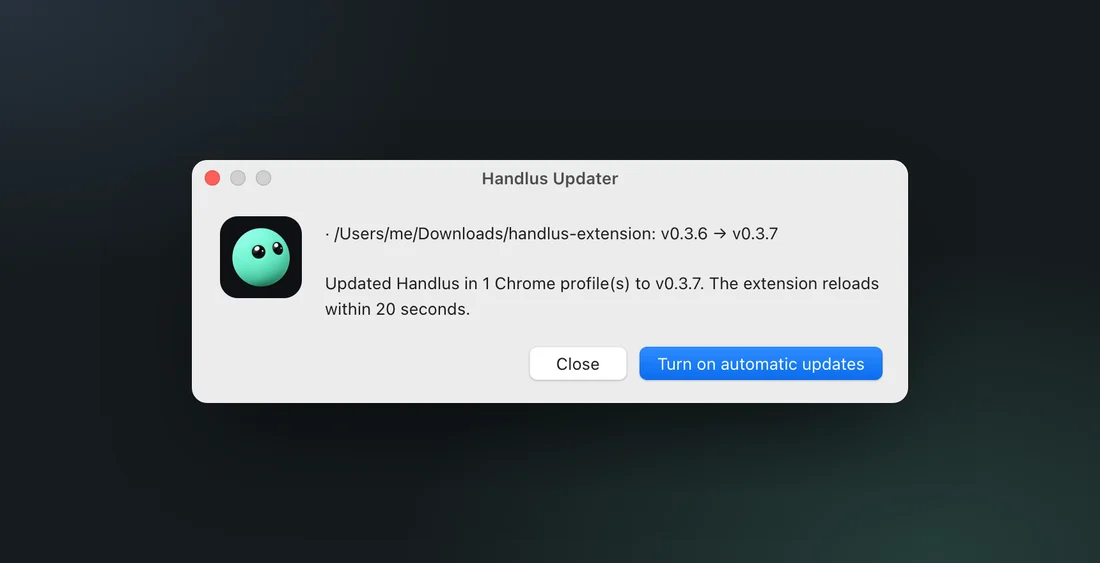
Click “Turn on automatic updates”
A few seconds later a window lists each folder it updated. Click “Turn on automatic updates” to get new versions on their own from now on. It checks when you log in and every 6 hours. Close updates just this once.
Check the popup
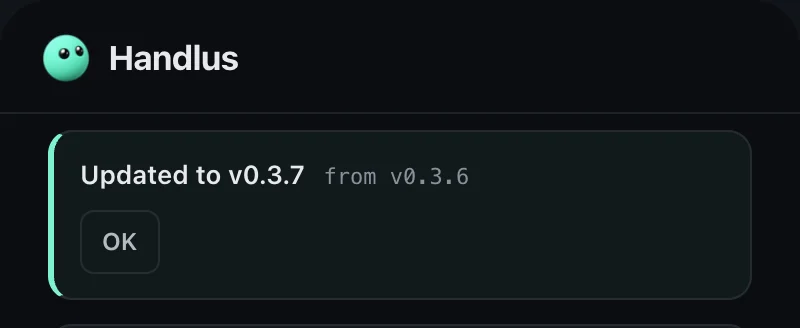
Open the Handlus popup in Chrome. When it says “Updated to v…”, you are done. The extension reloads itself within 20 seconds, right away if you open the popup.
Download the updater
Press the button below. The Handlus popup has the same button on the “With the updater” tab of its update notice.
Download for WindowsClick “More info”, then “Run anyway”
The first time, Windows may show “Windows protected your PC” because it does not know this file well yet. Click More info, then Run anyway. You only need to do this the first time.
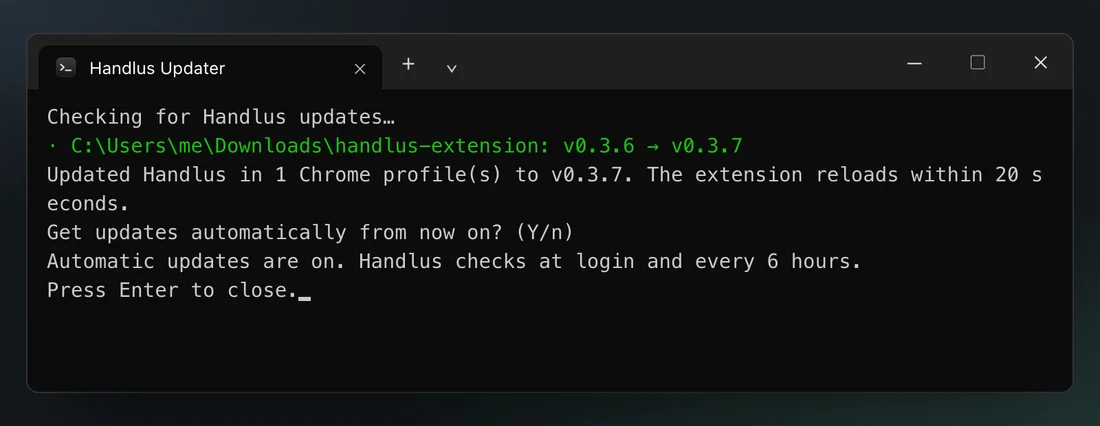
Press Enter to turn on automatic updates
A window opens and updates Handlus. When it asks “Get updates automatically from now on? (Y/n)”, press Enter. For just this one update, type n and press Enter. When it says “Press Enter to close.”, press Enter once more.
Check the popup
Open the Handlus popup in Chrome. When it says “Updated to v…”, you are done. The extension reloads itself within 20 seconds, right away if you open the popup.
Download the updater
Press the button below. The Handlus popup has the same button on the “With the updater” tab of its update notice.
Download for LinuxLinux on ARM (arm64)? Download the arm64 version
Unpack and run it in a terminal
Open a terminal in the folder you downloaded it to (usually Downloads) and run this line. When it asks “Get updates automatically from now on? (Y/n)”, press Enter.
tar xzf handlus-updater-linux-amd64.tar.gz && ./handlus-updater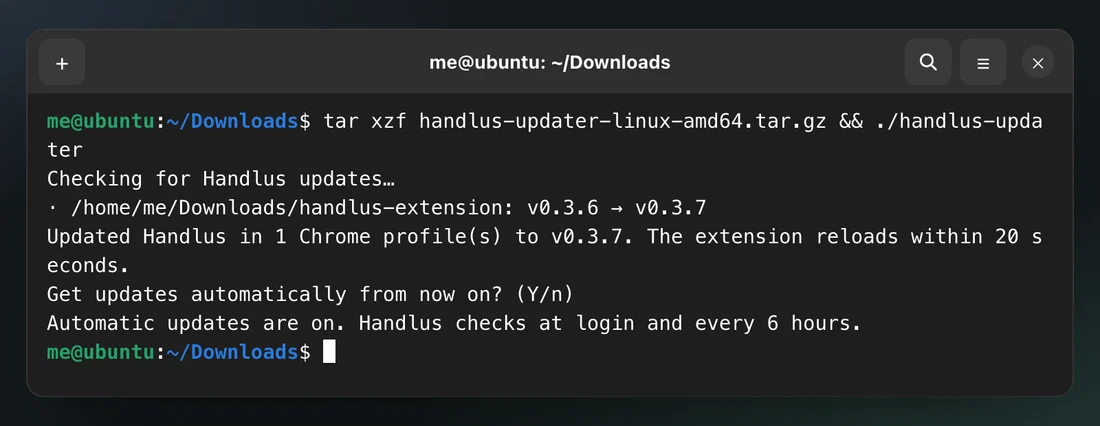
Check the popup
Open the Handlus popup in Chrome. When it says “Updated to v…”, you are done. The extension reloads itself within 20 seconds, right away if you open the popup.
If you get stuck
“Allow Handlus Updater in System Settings → Privacy & Security → Files and Folders.”
You clicked Don’t Allow, so the updater cannot change the folder. Open System Settings → Privacy & Security → Files and Folders, turn on the folder under Handlus Updater, then open the updater again.
“Could not find the Handlus extension folder.”
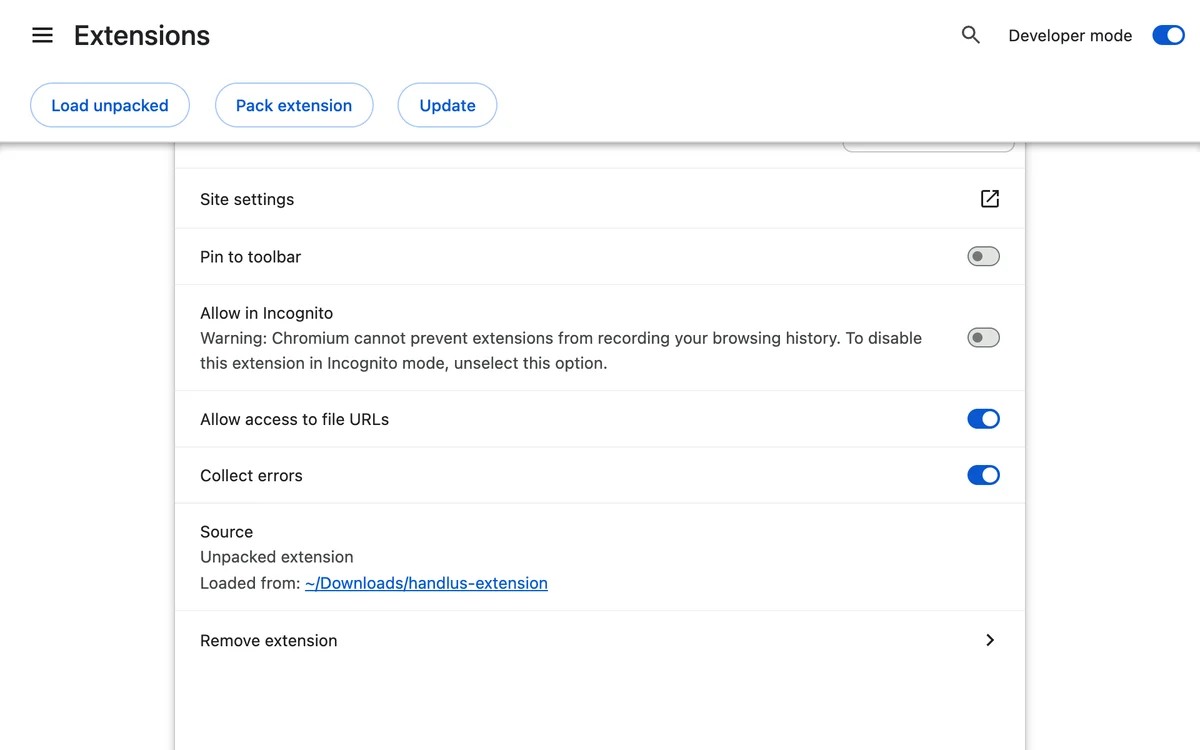
The updater could not tell which folder Chrome loads Handlus from, so it asks you to choose it. Open chrome://extensions, turn on Developer mode and click Details on Handlus. Choose the folder shown next to “Loaded from”.
Turning automatic updates off
Open the updater again. While automatic updates are on, the Mac window has a “Turn off automatic updates” button. On Windows and Linux it asks “Automatic updates are on. Turn them off? (y/N)”: type y and press Enter.
Other ways to update
Rather paste one line into Terminal or PowerShell?See the one-command guide
The windows in these pictures are drawn with their real text (the updater’s own messages and your Mac’s system messages), so they may look a little different on your screen.
© 2026 Handlus · Proprietary license · No copying or redistribution without permission · Privacy Policy · Terms · Pricing